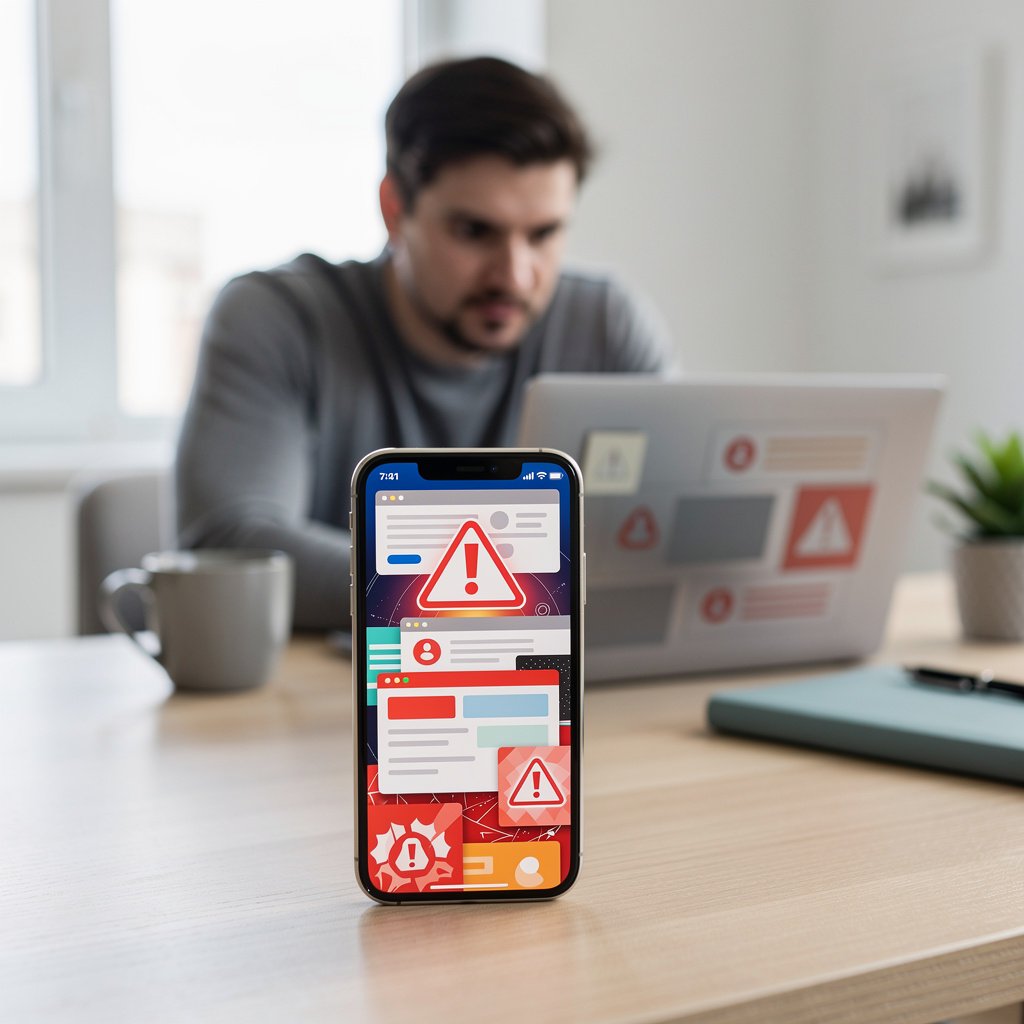
Malware on Phone: Warning Signs and First Steps
Fast battery drain, heat, crashes, advertisements, or high data use can have ordinary causes. A compromised phone is more likely when several changes appear together: an unknown app, new administrator or accessibility access, altered security settings, unexplained account logins, premium messages, or financial activity.
Match the response to what happened. Seeing one suspicious page is different from installing an app, granting remote access, entering credentials, or discovering an intruder controlling accounts.
Record symptoms before changing the device
Note when the behavior began and what immediately preceded it: app install, link, attachment, QR code, configuration profile, sideload, public charging event, or support call. Capture app names, permission screens, pop-ups, data use, device-management settings, and account alerts.
Do not repeatedly open a suspicious app to gather evidence. If the phone belongs to an employer or school, contact its security team before removing software or resetting it.
Check whether storage is full, the operating system is updating, a known app is syncing heavily, or battery health has declined. One performance symptom alone does not identify malware.
Disconnect active control or exfiltration
If a stranger is remotely operating the phone, turn on airplane mode and disable Wi-Fi and Bluetooth where safe. End any remote-support session and stop following the caller's instructions.
For stalking, domestic abuse, or device monitoring by someone with physical access, abrupt changes can alert that person. Use a separate safe device and seek specialist safety planning before removing tracking or shared-account access.
Do not use the suspected phone to call a number shown in the warning. Use another device and independently verified support information.
Secure high-value accounts elsewhere
From a trusted device, protect primary email, password manager, mobile carrier, banking, cloud storage, and important social accounts. Change exposed passwords, end unfamiliar sessions, remove unknown recovery methods, and enable strong multifactor authentication.
If the phone number or SIM is affected, contact the carrier's fraud team and review number transfers, call forwarding, authorized users, devices, and account PIN. An SMS code is not reliable when the attacker controls the line.
Tell financial providers about unauthorized activity through the card, statement, known app, or typed official site. Preserve fraud case numbers and replace payment credentials when instructed.
Review installed apps and powerful permissions
Inspect recently installed apps, device administrators, accessibility services, notification access, VPNs, keyboard apps, configuration profiles, certificates, and apps allowed to install other apps. Remove access that is both unfamiliar and unnecessary.
Use the operating system's normal uninstall process. If an app resists removal because it has administrator privileges, revoke only that verified privilege first.
Do not install a second unknown “cleaner” or antivirus promoted by a pop-up. CISA defines malware as malicious software installed on a computer or mobile device in its malware guidance.
On Android, Google Play Protect checks apps before installation, scans the device for harmful apps and warns about or removes them. To confirm it is on, open the Play Store, tap the profile icon, tap Play Protect, open its settings and check "Scan apps with Play Protect".
Update through built-in settings
Install the current supported operating-system and app updates from the device's settings and official app store. Updates can close vulnerabilities, but they do not prove that an already compromised account is clean.
Enable official app scanning or device security features where available. Review browser notification permissions, downloads, extensions, and site data if the symptoms began in a browser.
For a jailbroken, rooted, unsupported, or unofficially modified device, standard protections may be weakened. Obtain qualified help or plan a clean replacement.
CISA's tip card lists the habits that limit malware: keep the system and security software updated, do not open suspicious links even from people you know, use strong passwords and stronger sign-in for sensitive accounts, and keep regular backups. Its Secure Our World campaign repeats the core of that list.
For the everyday settings that make a phone harder to attack in the first place, see best ways to secure your phone against scammers.
Decide whether a reset is warranted
A factory reset may be appropriate after persistent unknown administrator access, invasive remote-control software, repeated reinstallation, or credible specialist advice. Before resetting, save essential photos and documents, authentication recovery codes, contact details, and incident evidence.
Do not back up the suspicious app or restore every setting automatically. Reinstall necessary apps from the official store and review each permission.
Resetting the phone does not change stolen passwords, reverse payments, remove malicious email rules, or secure a compromised carrier account. Complete those tasks separately.
| Situation | Reasonable response |
|---|---|
| One unwanted app, removed cleanly, no sign-in or payment made through it | Remove it, update, scan, monitor |
| The app had accessibility, device-admin or screen-recording access | Remove it, change passwords from another device, consider a reset |
| Banking logins or one-time codes may have been captured | Call the bank, change credentials elsewhere, reset the phone |
| The problem returns after removal | Back up personal files only, then factory reset |
Treat stalkerware and intimate access differently
An abusive person may know device codes, share an Apple or Google account, view cloud photos, use family location tools, or have installed monitoring software. Evidence and personal safety can be more important than immediate deletion.
Use a safe device that the other person cannot monitor to contact a domestic-violence or stalking resource. Review shared plans, location, connected vehicles, smart-home devices, and children’s accounts as part of a coordinated plan.
Do not confront a suspected abuser based only on an app name. Qualified advocates and forensic professionals can help distinguish shared-account visibility from covert software.
Investigate money and identity exposure
List which banking apps, cards, wallets, tax records, health information, identity documents, work files, and authentication apps were accessible. Notify each affected institution with specific facts.
If personal information was misused, use IdentityTheft.gov for a tailored recovery plan. Report internet-enabled theft to IC3 when appropriate and preserve transaction identifiers.
Watch for follow-up recovery services that demand payment or remote access. They may be the same criminals using details from the first incident.
Verify recovery over time
Monitor battery and data use, installed apps, permissions, carrier settings, login history, email rules, financial accounts, and security alerts. Keep the device locked with a strong code and disable notification previews for sensitive messages.
If symptoms continue after a clean reset, consider hardware, battery, network, or account causes with the device manufacturer or a reputable technician. Back up important data regularly using encrypted or access-controlled storage.
Related guides: how to check if your phone has spyware, what to do if you downloaded a fake app and how to stop fake virus warnings on your phone.
This article provides general cybersecurity information. High-risk business, legal, stalking, or financial cases may require the organization's security team, law enforcement, an advocate, attorney, or qualified mobile-forensics specialist.
Sources:
- Malware Tip Card, Cybersecurity and Infrastructure Security Agency
- Use Google Play Protect to help keep your apps safe & your data private, Google Help
- Secure Our World, Cybersecurity and Infrastructure Security Agency
- IdentityTheft.gov, Federal Trade Commission

Written by TheDigitalLife Editorial Team
Edited by R. K. Tiwari
Owner & Editor
R. K. Tiwari is the owner and editor of TheDigitalLife. He checks each guide against official U.S. sources before it is published.
About the editor and our editorial standards