How to Tell If a Browser Pop-Up Is a Scam
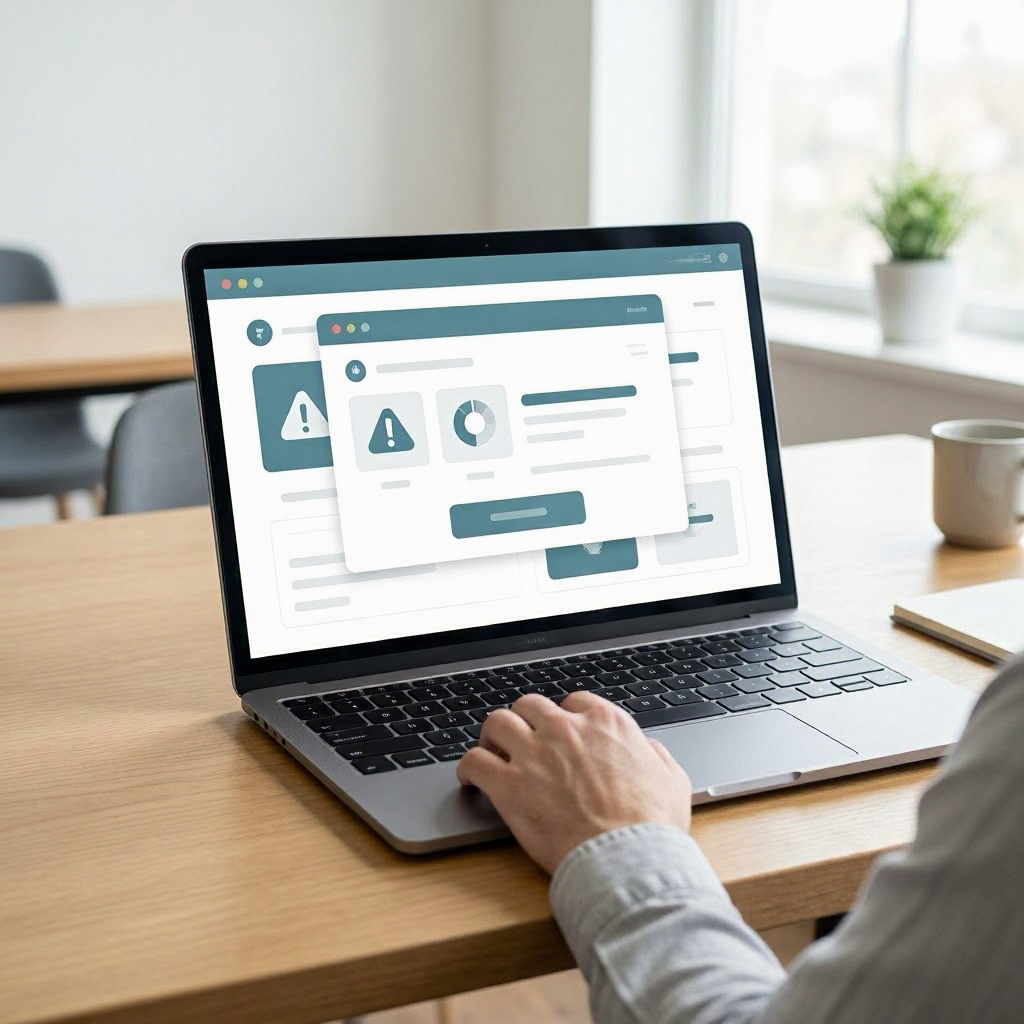
A web page can imitate a security alert, virus scan, renewal notice, prize, login screen, or government warning. It may use full-screen mode, sound, repeated dialogs, a countdown, or a familiar logo to make the browser feel locked. None of those effects proves that the operating system, bank, or antivirus company issued the message.
Do not call the displayed number, install its program, pay a fee, or enter a password. First determine whether the warning exists only inside one browser tab.
Notice what a web page cannot prove
A site can display your browser name, approximate location, IP address, device type, or operating system using ordinary web information. It can animate a fake scan and claim to find hundreds of infections in seconds. That is not evidence that it inspected the device.
Treat demands for immediate phone support, gift cards, cryptocurrency, remote control, or account credentials as strong scam signals. The FTC's tech-support scam guidance warns that unexpected security pop-ups that tell people to call a number are scams.
The logo is also not proof. Images, colors, and alert sounds from well-known companies are easy to copy into a page.
The same FTC page states two rules plainly. Legitimate tech companies do not contact you by phone, email or text to say there is a problem with your computer. And a real security warning never asks you to call a phone number, so a pop-up that does is a scam.
Compare the browser with the operating system
Look for the browser's address bar, tab title, back button, or site permissions. A warning contained within that frame came from a web page, even when it visually resembles Windows, macOS, Android, or an antivirus product.
Real account or device notices should be checked through the operating system's security area, an already-installed security application, or the provider's official account page. Do not use the pop-up's link to reach those places.
A page may enter full screen and hide normal controls. Exiting full screen or switching applications often reveals that the alarming screen is only a tab.
Close the page without interacting
Try closing the tab or browser window using normal controls or the operating system's application switcher. If repeated dialogs prevent it, force-close only the browser through the device's standard task controls, then reopen it without restoring the suspicious tab.
Do not click a button labeled “close,” “cancel,” or an X drawn inside the web page; it may be an advertisement or trigger another action. Do not download a cleanup tool offered by the warning.
After closing, clear the site's notification permission and pop-up permission if they were granted. Apple provides official steps for pop-up ads and persistent alerts in Safari; other device owners should use the browser or operating-system maker's support page.
On an iPhone or iPad, Apple gives the settings path as Settings, Apps, then Safari, where Block Pop-ups and Fraudulent Website Warning can be switched on. Apple also warns that some pop-ups use fake buttons that look like a close button, and advises closing the tab or window instead of tapping anything inside the pop-up.
Decide whether anything was downloaded or installed
Seeing a pop-up alone usually calls for a smaller response than installing software or granting access. Check the browser's download list, recent files, installed applications, browser extensions, notification permissions, and configuration profiles.
Delete an unneeded downloaded file without opening it. If software was installed, remove it through the operating system's normal application-management process and run the built-in or trusted security scan with current definitions.
For a work or school device, contact the authorized IT team. Do not attempt an unapproved cleanup that could destroy evidence or violate organizational policy.
Act quickly if remote access was granted
Disconnect the device from the network and end the remote-control session. From a different trusted device, contact financial institutions if accounts or payments were exposed, and secure the primary email account.
Remove the remote-access program, review startup items and unfamiliar user accounts, and obtain qualified technical help when the intruder had administrator access. A simple browser reset may not be enough after someone controlled the computer.
Write down what the person viewed, what credentials were entered, which files may have been opened, and whether money moved. Do not rely on the caller to uninstall their own tools safely.
The steps are set out in remote access scam: what to do if a scammer controlled your computer.
Secure credentials entered into the page
If a password was typed, navigate independently to the real service from a trusted device and change it. Sign out other sessions, review recovery email and phone details, remove unknown authentication methods, and enable strong multifactor authentication.
Change every account that reused the exposed password, beginning with email, password manager, banking, cloud storage, mobile carrier, and social media. Check email forwarding rules and filters, which attackers can alter to hide alerts.
If a card or bank detail was provided, call the number on the physical card or statement. Explain exactly what was shared and follow the institution's fraud instructions.
Investigate recurring browser notifications
Alerts that appear after the original tab is closed may be site notifications previously allowed, not proof of persistent malware. Review each allowed website in browser notification settings and remove unfamiliar permissions.
Also check the browser's startup pages, default search engine, extensions, and shortcuts. An unwanted extension can redirect searches or inject advertisements, while a changed homepage can reopen the same deceptive site.
Update the browser and operating system from their built-in settings. Avoid third-party driver updaters or registry cleaners advertised as a cure.
Verify a claimed subscription or charge separately
A pop-up may claim that antivirus, cloud storage, or technical support is renewing. Close it and inspect the actual account and card statement independently. Do not confuse a fake renewal warning with a posted transaction.
If an unfamiliar charge exists, contact the merchant or issuer through the statement and use the correct dispute route. If no charge exists, do not create one by paying the pop-up to prevent a fictional renewal.
Check family accounts and app-store subscriptions before concluding that a recognizable merchant charge is fraud.
The FTC describes how this turns into a refund scam: the notice pushes you to call within 24 hours, the caller asks for remote access and has you enter payment details on a fake site, then claims you were refunded too much and demands the difference back by gift card. See fake antivirus subscription renewal scam and how to stop fake virus warnings on your phone.
Report the incident with useful details
Save the page address, screenshot, displayed phone number, download name, payment information, and time. Report deceptive tech support at ReportFraud.ftc.gov. Substantial internet-enabled theft may also be reported through IC3.
If nothing was clicked, installed, entered, or paid, closing the page, removing its permissions, updating software, and monitoring may be sufficient. If remote access, credentials, identity data, or money were involved, expand the response to every affected account and provider.
Use the incident to enable browser protections and backups, but avoid assuming that every future pop-up is harmless. The reliable test is its source and behavior: verify warnings in trusted system or account settings, never through the message demanding action.
Sources:
- How To Spot, Avoid, and Report Tech Support Scams, FTC Consumer Advice
- Block pop-up ads and windows in Safari, Apple Support
- ReportFraud.ftc.gov, Federal Trade Commission
- Internet Crime Complaint Center (IC3), Federal Bureau of Investigation

Written by TheDigitalLife Editorial Team
Edited by R. K. Tiwari
Owner & Editor
R. K. Tiwari is the owner and editor of TheDigitalLife. He checks each guide against official U.S. sources before it is published.
About the editor and our editorial standards