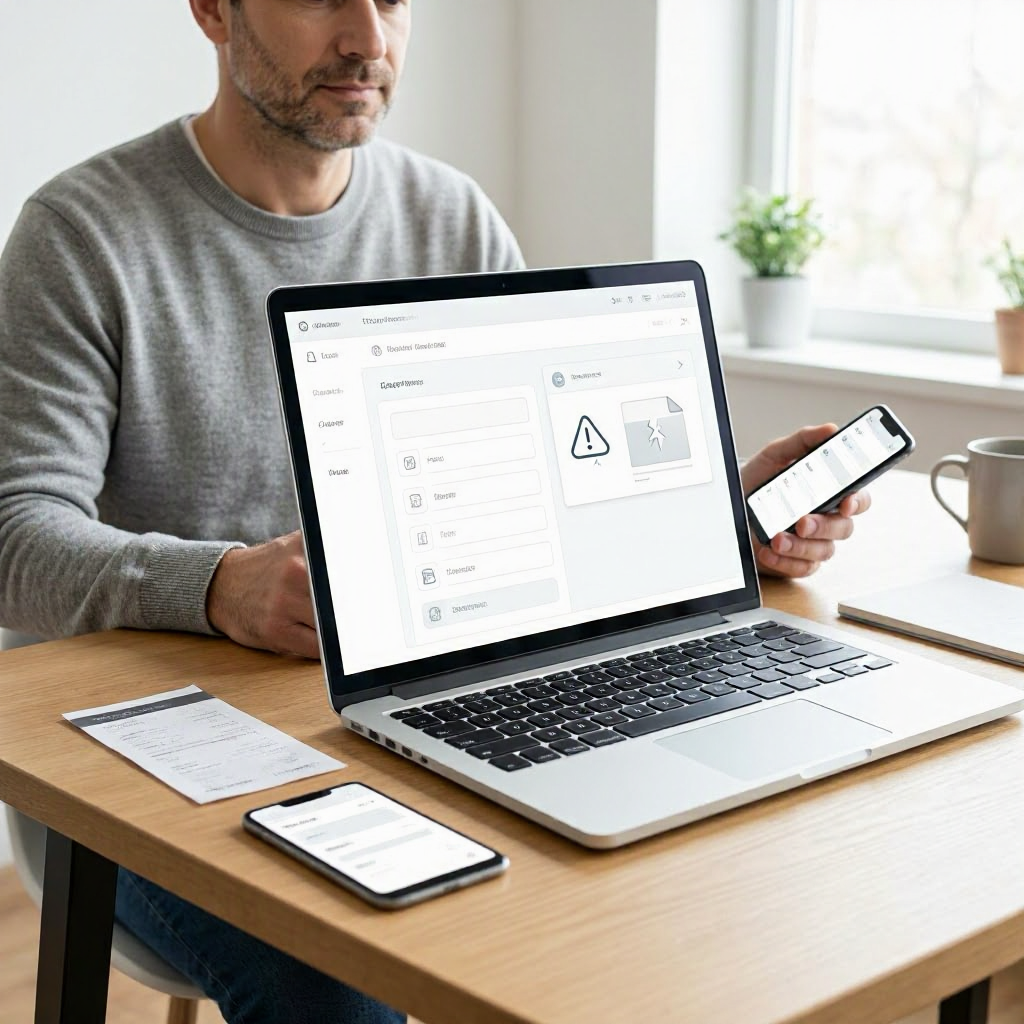
How to get a refund when a digital download does not work
---
Why Digital Downloads Fail and Your Refund Rights
Buying a digital download like software, an e-book, a game, or music files should be straightforward, but sometimes the file won't open, install, or function as promised. This can happen due to compatibility issues, corrupted files, or even misleading product descriptions. In the United States, federal laws like the FTC Act protect consumers from deceptive practices, but refunds depend on the seller's policy, platform rules, and your payment method.
Most platforms offer some refund window for faulty digital goods, often 14 to 30 days, but policies vary widely. Always check your order confirmation first. This guide walks you through practical steps to request a refund safely, starting with verification and escalating if needed. Keep in mind, this is general information, not legal or financial advice. Results depend on your specific situation, proof, and the seller's response.
Step 1: Verify the Download Issue Before Requesting a Refund
Don't assume the download is defective right away. Many issues stem from user-side problems that a quick check can fix.
Start by reviewing the system requirements listed on the product page. For example, a game might require Windows 10 or a specific graphics card, while software could need macOS Ventura or higher. Compare your device specs using built-in tools like Windows System Information or About This Mac on Apple devices.
Test these basics:
- Redownload the file: Use the official link from your purchase email or account dashboard. Avoid third-party downloaders.
- Check file integrity: Right-click the file, select Properties, and verify the size matches the listing. For software installers, run any built-in checksum tools if available.
- Disable antivirus temporarily: Security software sometimes blocks downloads. Add exceptions for the file and try again.
- Update your OS and apps: Outdated systems cause most compatibility errors.
- Try on another device: If possible, test on a different computer or phone to rule out hardware faults.
Document each attempt with screenshots of error messages, your device specs, and timestamps. Save the original download link and any license keys. If it still fails after these steps, note the exact error, like "installation failed at 50%" or "file corrupted."
Real-world example: A U.S. shopper bought a photo editing app from an independent site. It wouldn't launch on their older laptop. After confirming specs matched and trying a redownload, they screenshotted the crash log and proceeded to support.
Step 2: Review Your Purchase Records and Refund Policies
Locate your order confirmation email, receipt, or account history. Note the purchase date, amount in USD, merchant name, and transaction ID. This proves you bought it legitimately.
Next, revisit the product page and seller's refund policy. Screenshots everything before it changes. Key details to check:
- Return window (e.g., 7 days for apps, 30 days for e-books).
- Conditions for digital refunds, like "non-functional due to verified errors."
- Exclusions, such as "no refunds after activation" for games.
- Refund method (original payment or store credit).
Platforms like Amazon, Steam, or the Apple App Store have centralized policies. Independent sites or marketplaces like Etsy for digital art might defer to the seller. If the listing promised "100% satisfaction guaranteed" but the policy says otherwise, that's potential FTC deception grounds.
Save bank or card statements showing the charge. For PayPal or Venmo purchases, log into your account for details. If over 30 days passed, your options narrow, but payment disputes might still work.
Step 3: Contact the Seller or Platform Through Official Channels
Reach out promptly using the official support page, app, or email from your account. Avoid phone numbers from Google searches or unsolicited texts, as scammers impersonate support.
Craft a clear, polite message. Include:
- Order number and date.
- Description of the issue with error details.
- Proof attachments (screenshots, receipts).
- Specific request: "Please issue a full refund to my original payment method."
Sample email to seller:
Subject: Refund Request for Order #12345 - Digital Download Not Working
Dear Support Team,
I purchased [Product Name] on [Date] for $29.99 (Order #12345). The download fails to [describe error, e.g., install/open] despite meeting system requirements and redownloading.
Attached: Screenshots of errors, system specs, receipt.
Please process a full refund. Thank you.
Best, [Your Name] [Account Email]
For platforms:
- Steam: Use the Help menu > Purchases > Request Refund (within 14 days, 2 hours playtime).
- Apple: Report a Problem in your purchase history.
- Google Play: Request refund via order details within 48 hours.
- Amazon Digital: Contact through Your Orders > Digital Orders.
Expect a response in 24-72 hours. Follow up if silent after 3 business days, referencing your original message ID. Log all chats, emails, and call notes with dates, rep names, and promises.
If they offer a replacement download or fix, test it fully before accepting. Ask for written confirmation of any refund timeline.
Step 4: Escalate Within the Platform or Marketplace
If the seller ignores you or denies unfairly, use built-in tools.
On marketplaces like eBay or Etsy:
- Open a case via the Resolution Center.
- Select "Item not as described" or "Doesn't work/function."
- Upload evidence.
- Platforms often side with buyers if proof shows the file is defective.
Buyer protection programs cover digital goods if policies allow. For example, PayPal's Purchase Protection may apply to marketplace buys. Check the platform's help center for exact steps.
Independent sites without disputes? Note their response (or lack) for later escalation.
Timeline tip: Act within policy windows, typically 30-180 days from purchase.
Proof to Gather: Essential Documentation Table
Use this table to organize your evidence before any contact. Strong proof increases success rates.
| Type of Proof | What to Save | Why It Helps |
|---|---|---|
| Order Confirmation | Email, receipt, transaction ID | Proves purchase date and amount |
| Product Listing | Screenshots of description, specs | Shows promises vs. reality |
| Error Messages | Screenshots with timestamps | Documents the defect clearly |
| Device/System Info | Specs screenshot (e.g., Windows key + R > msinfo32) | Rules out user error |
| Attempts Log | Notes/screenshots of redownloads, tests | Shows troubleshooting efforts |
| Support Communications | Full email/chat threads | Tracks seller responses |
| Payment Statement | Bank/card screenshot (redact full numbers) | Verifies charge |
Print or save digitally in a dedicated folder. Redact sensitive info like full card numbers.
Step 5: File a Payment Dispute or Chargeback
If platform support fails, dispute with your payment provider. Credit cards offer the strongest protections under the Fair Credit Billing Act (up to $50 liability for issues).
Process overview: 1. Review your statement for merchant name and date. 2. Log into your bank, card issuer, or app account (e.g., Chase app, Capital One portal). 3. Find Disputes > Select transaction > Choose reason like "Services not provided" or "Item defective." 4. Attach all proof. 5. Submit and note the case number.
Timelines vary:
- Credit cards: Up to 60 days from statement date.
- Debit cards: Often 60 days.
- PayPal: 180 days.
- Payment apps like Apple Pay: Follow linked card rules.
Chargeback pros and cons: Providers investigate, often refunding temporarily while reviewing. Sellers can counter, so solid proof matters. Monitor statements post-dispute.
Example: A student charged $49.99 for a non-working online course video download via Visa. After seller denial, their issuer reversed it within 10 days based on error screenshots.
Avoid disputes as first resort, as repeated ones can flag your account. CFPB resources at consumerfinance.gov cover payment disputes.
Step 6: Report to Consumer Protection Resources
For stubborn cases or suspected scams:
- FTC: File at ReportFraud.ftc.gov. Helps track patterns, no individual refunds.
- State AG: Search "[your state] attorney general consumer complaint." Many mediate.
- BBB: Optional for reputation pressure.
If counterfeit software or fake site, report to platform and FTC. Never pay extra "fees" to scammers posing as recovery services.
Common Platforms for Digital Downloads and First Steps
Different sites handle refunds uniquely. Always verify via official apps/sites.
| Platform | Typical Refund Window | How to Start Refund |
|---|---|---|
| Steam | 14 days, limited use | Purchases page > Request Refund |
| Apple App Store | 14 days standard | reportaproblem.apple.com |
| Google Play | 48 hours | Play Store > Order History |
| Amazon Digital | Varies by item | Your Orders > Contact Seller |
| Independent Sites | Check policy | Support email from purchase page |
Note: These are general; confirm current rules on the site. For subscriptions with downloads (e.g., Adobe), cancel first via account.
Sample Dispute Message for Payment Provider
To your bank/card issuer:
Subject: Dispute Transaction [Date/Amount] - Defective Digital Download
I dispute the $XX.XX charge to [Merchant] on [Date]. The digital product did not work despite troubleshooting.
Attachments: Order receipt, error screenshots, seller denial.
Please reverse this charge.
Thank you, [Name/Account #]
Signs of a Digital Download Scam to Watch For
Not all failures are scams, but beware:
- Unrealistically low prices (e.g., $5 pro software).
- No clear company info or policy.
- Pressure to download immediately.
- Post-purchase upsells or fake support calls.
- Domains like "nikeofficialshop.net" mimicking brands.
Verify via FTC's scam alerts at consumer.ftc.gov. Stick to known platforms.
Preventing Problems with Future Digital Purchases
Shop smarter:
- Read recent reviews for compatibility mentions.
- Buy from platforms with buyer protection.
- Use credit cards over debit for disputes.
- Test downloads immediately.
- Set calendar reminders for refund windows.
For families or seniors, enable purchase approvals on shared accounts.
When Refunds Aren't Possible and Alternatives
Expired windows? Some offer store credit or support fixes. Open-source alternatives exist for software. For education content, ask about access extensions.
Policies can vary by state, retailer, and item type. Your bank or card issuer may have its own process. Use official websites and apps for support.
This process has helped many U.S. shoppers recover funds from faulty downloads. Stay organized, patient, and persistent. (Word count: 2487) ---

About the TDL Expert Panel
TDL Expert Panel · TheDigitalLife Editorial Team
TDL Expert Panel is the editorial team behind TheDigitalLife. The team researches, reviews, and creates practical guides to help everyday readers make better decisions about home repair costs, refunds, AI tools, digital safety, productivity, and useful online resources. Each guide is written to be clear, useful, and easy to understand.