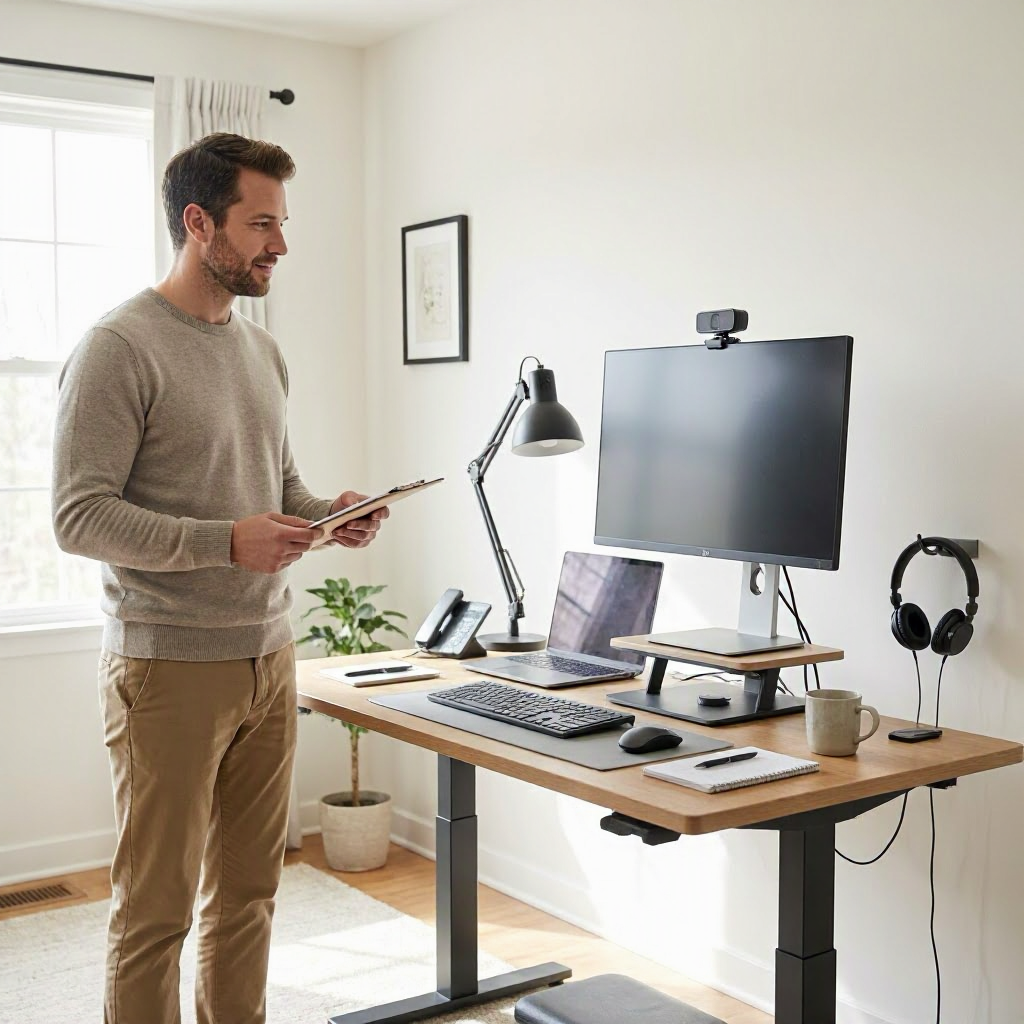
Work From Home Desk Setup checklist for work from home employees
Why a Proper Work From Home Desk Setup Boosts Your Productivity
Working from home has become standard for many U.S. employees, especially after the rise of remote and hybrid roles. But a cluttered or uncomfortable desk setup leads to distractions, back pain, and burnout. A well-organized desk supports focus, reduces physical strain, and helps you end the workday feeling accomplished.
This checklist guides you through creating an efficient work from home desk setup. It focuses on ergonomics, essentials, tech integration, and organization, all tailored for U.S. remote workers. Follow these steps to set up your space in one afternoon, then tweak as needed.
You'll need basic items like a desk, chair, and monitor, but we'll cover budget-friendly options and workflows to make it sustainable. The goal: a setup that enhances daily productivity without overwhelming your space or wallet.
The Complete Work From Home Desk Setup Checklist
Use this master checklist to audit your current setup or build from scratch. Print it or copy to a notes app like Google Keep or Apple Notes. Check off items as you go.
| Category | Key Items to Check/Add | Quick Action |
|---|---|---|
| Desk & Chair | Stable desk (at least 48" wide), adjustable chair with lumbar support | Measure your space; test height adjustability |
| Ergonomics | Monitor at eye level, keyboard tray if needed, footrest | Adjust so elbows at 90 degrees, screen top at eye level |
| Tech Essentials | Laptop stand, external keyboard/mouse, webcam, headset | Position peripherals for comfort; test connections |
| Lighting & Environment | Natural light source, task lamp, plants/air purifier | Minimize glare; add green elements for focus |
| Organization | Cable organizers, desk trays, wall shelves | Declutter surfaces; designate zones for in-use items |
| Health Add-Ons | Wrist rest, standing mat, water bottle holder | Schedule micro-breaks; hydrate regularly |
| Power & Backup | Surge protector, UPS for outages, extension cord | Plug in safely; label cables |
Tick off 80% of this table today for immediate gains. Now dive into details for each category.
1. Select the Right Desk and Chair Foundation
Start here, as your desk and chair form the base. A poor foundation causes slouching, which kills focus after 30 minutes.
Desk Requirements
Choose a desk that's sturdy and spacious enough for your monitor, keyboard, notepad, and coffee mug. Aim for 48-60 inches wide and 24-30 inches deep to fit most home offices. Standing desks let you alternate positions, reducing fatigue during long Zoom calls common in U.S. remote teams.
Measure your room first: ensure at least 3 feet of legroom and clearance for chair movement. If space is tight, corner L-shaped desks maximize walls without crowding.
Budget tip: Check retailers like IKEA, Staples, or Amazon for options under $200. Avoid flimsy particleboard that wobbles during typing.
Chair Selection Workflow
Your chair needs adjustable height, armrests, and lumbar support. Sit so feet are flat, knees at 90 degrees, and thighs parallel to the floor.
- Test in-store if possible (Office Depot has free trials).
- Look for breathable mesh backs to stay cool in un-air-conditioned homes.
- Add a seat cushion if needed for lower back relief.
Pro tip: Set a timer for 10-minute stretch breaks every hour using your phone's Clock app. This prevents the "Zoom hunch" that plagues hybrid workers.
2. Master Ergonomics for All-Day Comfort
Ergonomics prevents repetitive strain injuries, letting you sustain 6-8 hour focus blocks. U.S. remote employees report higher productivity with proper setup, per common workplace surveys.
Monitor and Screen Positioning
Raise your screen so the top is at eye level, about 20-30 inches away. Use a laptop stand ($20-40) or stack books securely.
- For dual monitors: Align the primary at eye level; secondary slightly lower/angled.
- Enable night mode in Windows Settings or macOS System Preferences to cut blue light after 5 PM.
Keyboard, Mouse, and Input Setup
Keep elbows close to your body, wrists straight. An external keyboard pulls your laptop screen up, improving posture.
- Wireless mouse: Optical with at least 1000 DPI for smooth navigation in tools like Microsoft Teams.
- Wrist rest: Gel or memory foam, but only if it doesn't raise wrists above keyboard level.
Add a footrest if your feet dangle. This simple fix aligns hips and reduces lower back pressure during status update emails.
Quick Ergonomics Self-Check
- Every morning: Adjust chair height; scan posture.
- Midday: Stand, roll shoulders, refocus eyes 20 feet away for 20 seconds (20-20-20 rule).
- Track with a free app like Stretchly, which reminds you without disrupting flow.
3. Tech Essentials for Seamless Remote Work
Integrate tech that supports your workflow, like Slack pings or Google Workspace docs. Cluttered cables distract; organized tech flows.
Peripherals Checklist
- Laptop stand: Adjustable aluminum models elevate screens.
- External keyboard and mouse: Mechanical keys for faster typing in reports.
- Webcam: Built-in is fine, but upgrade to 1080p for clear client calls (e.g., Logitech C920).
- Headset: Noise-canceling over-ear for focused meetings; check compatibility with Zoom or Teams.
Position mouse to your dominant side, keyboard centered. Test audio in your video app's settings before team huddles.
Connectivity and Power
Use a surge protector with at least 8 outlets to handle laptop, lamp, and chargers. In outage-prone areas, a basic UPS (under $100) keeps work alive for 15-30 minutes.
- Ethernet cable over Wi-Fi for stability during uploads.
- USB hub: Powered dock with 7+ ports reduces dongle chaos.
Label cables with tape: "Monitor," "Keyboard." This speeds reboots when IT support is remote.
4. Optimize Lighting and Room Environment
Poor lighting strains eyes, dropping productivity 20-30% in dim setups. Natural light boosts mood for U.S. workers battling winter blues.
Lighting Workflow
- Face a window for indirect light; avoid backlighting glare on screens.
- Add a desk lamp with adjustable LED (4000K color temp for clarity).
- Bias lighting: LED strip behind monitor cuts contrast fatigue.
Close blinds during peak sun to prevent squinting. Apps like f.lux auto-adjust screen warmth.
Air and Greenery
Stale air fogs thinking. Open a window or use a small fan. Place 1-2 plants like snake plant for oxygen and calm.
- Desk fan: USB-powered, quiet under 30dB.
- Air purifier: Compact HEPA for allergy sufferers in dusty homes.
This setup supports longer focus sessions, essential for deadline-driven roles.
5. Cable Management and Surface Organization
Chaos on your desk mirrors a chaotic inbox. Organize to grab items in seconds.
Declutter Steps
- Empty drawers; sort papers into "Action," "File," "Trash."
- Use trays: One for inbox, one for outgoing mail, one for tech.
- Cable sleeves or clips bundle wires under desk.
Wall-mounted shelves hold rarely used items, freeing surface for your current project.
Zoning Your Desk
Divide into zones: - Work zone: Monitor, keyboard, notepad. - Reference zone: Planner, water bottle. - Supply zone: Pens, sticky notes.
Weekly reset: Sunday evenings, 10 minutes to wipe and rezone. This habit carries into task prioritization.
6. Personal Touches for Comfort and Motivation
A sterile desk leads to boredom. Add subtle personalization without clutter.
- Family photo (1-2 max) for quick mood lift.
- Noise machine or white noise app for blocking household sounds.
- Scent diffuser with peppermint for alertness.
Keep it minimal: If it doesn't serve work or wellness, relocate it.
7. Health and Wellness Integrations
Prevent burnout with built-in habits. Your desk setup reinforces boundaries.
Hydration and Breaks
- Bottle holder or coaster keeps water handy; aim for 8 glasses daily.
- Standing mat for 20% of your day if using a standing desk.
End-of-Day Routine
- 5 PM shutdown: Close apps, dim lights, log off.
- Checklist: Files saved? Tasks for tomorrow noted in Todoist or Outlook?
This signals brain to switch off, improving sleep and next-day focus.
Step-by-Step Desk Setup Workflow
Transform your space in 2-3 hours:
- Prep (15 min): Clear area, measure space.
- Assemble base (30 min): Desk, chair; adjust heights.
- Ergonomics (20 min): Position monitor, peripherals.
- Tech test (15 min): Plug in, join a test call.
- Organize (30 min): Cables, trays, lighting.
- Personalize (10 min): Add plants, photo.
- Audit (10 min): Use the checklist table; tweak.
Repeat monthly for changes like new gear.
Common Mistakes in Work From Home Desk Setups
Avoid these to save time and pain:
- Wrong height: Causes neck strain; remeasure weekly.
- Overloading outlets: Risks fire; use surge protectors.
- No boundaries: Desk in bedroom blurs work-life; dedicate a corner.
- Ignoring noise: Headset essential for kids/pets.
- Skipping maintenance: Dust builds up; weekly wipe-down.
Hybrid workers: Pack a "road kit" (mouse, stand) for office days.
Sample Daily Desk Routine for Peak Productivity
Tie your setup to habits:
- 8 AM Start: Adjust chair, open planner.
- Focus blocks: 90 min work, 5 min stretch.
- Lunch: Step away fully.
- 3 PM Check: Hydrate, rezone desk.
- 5 PM Close: Shutdown ritual.
This leverages your setup for sustainable output.
Advanced Tweaks for Long-Term Remote Workers
For veterans:
- Monitor arm: Frees desk space.
- Dual-boot setup: Work laptop separate from personal.
- Smart plug: Remote lamp control via Alexa.
Track productivity pre/post-setup in a simple journal: "Tasks completed? Energy level?"
Quick Maintenance Checklist
Monthly:
- Clean screen/keyboard.
- Tighten screws.
- Update peripherals firmware.
Quarterly:
- Reassess ergonomics with a coworker video call.
- Rotate chair position for even wear.
Your work from home desk setup isn't set-it-and-forget-it. Small tweaks keep it supporting your goals, from clearer communication to fewer distractions.
Investing time here pays off in sharper focus and less fatigue. U.S. remote employees with optimized spaces report better work-life balance. Start with the checklist today, and build from there.

About the TDL Expert Panel
TDL Expert Panel · TheDigitalLife Editorial Team
TDL Expert Panel is the editorial team behind TheDigitalLife. The team researches, reviews, and creates practical guides to help everyday readers make better decisions about home repair costs, refunds, AI tools, digital safety, productivity, and useful online resources. Each guide is written to be clear, useful, and easy to understand.