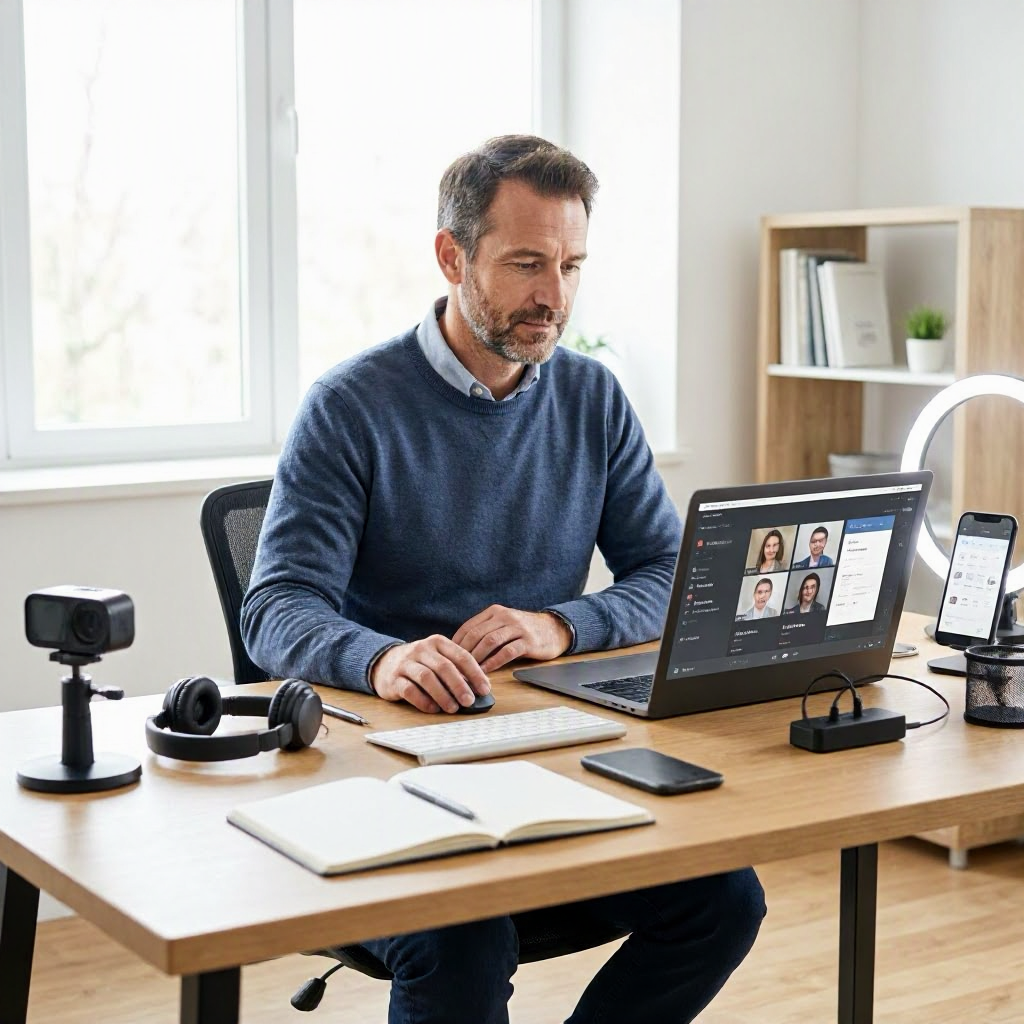
Best tools for Google Meet meetings in 2026
Why Tools Matter for Your Google Meet Meetings in 2026
Remote and hybrid work remain the norm for many U.S. workers, from freelancers in home offices to teams at small businesses. Google Meet handles most video calls, but without the right tools, meetings drag on, notes get lost, and follow-ups slip. In 2026, better tools cut meeting time by streamlining prep, participation, and review, helping you focus on real work instead of tech hassles.
These tools address common pain points like poor audio, forgotten agendas, scattered action items, and fatigue from back-to-back calls. You'll save hours weekly by automating transcription, sharing screens seamlessly, and turning discussions into tasks. Start with one or two that fit your routine, then build from there.
Expect integrations with Google Workspace, since most U.S. companies use Gmail and Drive for collaboration. Check official Google support pages for compatibility, as features evolve quickly.
Hardware Essentials for Clear Google Meet Audio and Video
Strong hardware prevents "can you hear me?" loops that waste time. Invest in basics if your laptop's built-in setup falls short, especially for client calls or hybrid team updates.
Webcams for Professional Video
A good webcam delivers sharp 1080p or 4K video, reducing eye strain for you and viewers. Logitech Brio stands out for auto-framing and light correction, ideal for dim home offices. Position it at eye level on a tripod or monitor arm to mimic in-person eye contact.
Pair with software like Google's auto-framing in Meet (enable in settings). Test before calls: share your preview in Meet's pre-join screen.
Microphones and Headsets for Crisp Audio
Built-in mics pick up background noise from kids or traffic, common in U.S. suburbs. Use a USB mic like the Blue Yeti for clear pickup up to 3 feet away, or a headset like Jabra Evolve2 for noise-canceling during noisy hybrid setups.
In Meet, enable noise cancellation under audio settings. Mute habitually: hit spacebar to talk in many headsets, avoiding interruptions.
Lighting and Backgrounds for Polish
Poor lighting makes you look tired, killing credibility in sales pitches or manager updates. A ring light like the Neewer 10-inch clips to your laptop, providing even illumination for $20-30 (verify current pricing on retailer sites).
For backgrounds, use Meet's virtual ones or a physical setup: plain wall plus plant. Tools like ManyCam let you overlay custom backgrounds or effects pre-call.
Quick hardware checklist:
- Webcam: 1080p minimum, auto-focus.
- Mic: USB, noise-canceling.
- Lighting: Adjustable ring light.
- Test run: Join a test Meet 10 minutes early.
This setup costs under $200 total for starters, deductible as a home office expense for freelancers (consult IRS guidelines or your accountant).
Browser Extensions to Supercharge Google Meet
Chrome extensions add features Google Meet lacks natively, like polls and timers. Install from the Chrome Web Store; they work instantly on meet.google.com.
Polling and Engagement Tools
MeetPlus or Google Meet Grid View Enhancements show all participants clearly, preventing "who's talking?" confusion in large remote teams. For polls, Mentimeter for Meet integrates live questions, great for brainstorming sessions.
Example: In a weekly standup, poll "Top priority this week?" to clarify focus without verbal debate.
Timer and Productivity Boosters
Meet Timer flashes warnings at 5 minutes left, enforcing agendas. Combine with Session Buddy to save Meet tabs across browser windows, avoiding lost links mid-day.
Google Meet Enhancement Suite combines grid view, mute all, and emojis, speeding up facilitation for managers.
Customization Extensions
Meet Enhancement Suite adds themes and shortcuts, like one-click recording. For accessibility, Live Caption Enhancer improves Meet's built-in captions for non-native speakers in diverse U.S. teams.
Limit to 3-5 extensions to avoid slowdowns. Disable unused ones via chrome://extensions/.
Scheduling Tools to Start Meetings Right
Poor scheduling leads to no-shows and rushed prep. Integrate calendars to block time and set agendas.
Google Calendar Mastery
Google's native tool syncs directly with Meet. Create events with agendas in the description, auto-generating Meet links. Use focus time blocks pre/post-meet to protect prep and decompression.
Template agenda: ``` Objective: Align on Q1 goals 1. Wins (5 min) 2. Blocks (10 min) 3. Actions (5 min) Attendees: Confirm RSVP ```
Share via "Add guests" for automatic reminders.
Appointment Schedulers for External Meetings
For freelancers or client work, Calendly links to your Google Calendar, letting clients book slots with pre-set durations. Add intake forms: "Share agenda beforehand?"
Set buffers: 10 minutes between calls to note actions. Free tier handles most needs; premium unlocks team scheduling.
Note-Taking Apps for Real-Time Collaboration
Scribbling on paper misses shared context. Use digital notes during calls for instant team edits.
Google Docs and Slides
Open a Doc in Meet's sidebar (via Activities > Google Docs). Assign sections: "You take notes on decisions." Post-call, @mention action owners.
For visuals, share Slides with presenter mode, controlling navigation remotely.
Advanced Options Like Notion or OneNote
Notion templates for meeting notes link to tasks and databases. Embed Meet links and toggle real-time edits. Microsoft OneNote integrates if your team mixes Workspace with Office 365.
Workflow: Pre-call, duplicate a "Meeting Notes" template. During: Bullet decisions. After: Convert bullets to tasks.
Sample post-meet note structure:
- Attendees: List with roles.
- Key Decisions: Bold outcomes.
- Actions: Who, what, by when.
- Next Steps: Link calendar invite.
AI Transcription and Summary Tools
Manually transcribing eats hours. AI handles it, freeing you for analysis.
Built-In Google Meet Features
Enable recording and captions in Meet settings (host-only for recordings). Transcripts save to Drive automatically. Review via "Transcript" tab post-call.
For live captions, turn on in settings; accurate for standard English accents.
Third-Party AI Like Otter.ai or Fireflies.ai
Otter.ai joins Meets as a bot, transcribing and summarizing speakers. Tags action items automatically. Integrates with Slack for instant shares.
Fireflies.ai searches transcripts ("What did we decide on budget?") and generates tasks. Free trials available; check pricing on their sites.
U.S. privacy note: Recordings need consent in two-party states like California; inform participants upfront.
Workflow: 1. Invite bot pre-call. 2. Post-call: Skim summary for actions. 3. Share clipped highlights via email or chat.
Chat and Follow-Up Integrations
Meet's chat fills fast. Route discussions to dedicated channels.
Slack or Microsoft Teams Links
Generate Meet links in Slack threads: "/meet" command. Post-meet, drop transcript there for async review, reducing follow-up emails.
Script for updates: "From today's Meet: Action for me - finalize report by Friday. Thoughts?"
Task Managers for Action Items
Asana or Todoist pull from transcripts. Create tasks during call: "New task: @John - Review deck, due EOD Wednesday."
Google Tasks integrates simply via sidebar. Review daily to close loops.
Full Workflow: Prep, Run, Review Your Google Meet
Tie tools together for a repeatable system that cuts meeting time 20-30%.
Pre-Meeting (10-15 Minutes)
- Calendar: Confirm agenda, send reminder.
- Hardware: Test audio/video.
- Notes: Open shared Doc, invite bots.
- Extensions: Enable timer/poll.
During Meeting (Structured)
- Start: Share screen with agenda.
- Engage: Poll for priorities, use chat for side notes.
- Time: Timer alerts keep pace.
- Note: Real-time Doc edits.
Post-Meeting (5-10 Minutes)
- Transcript: Generate/share summary.
- Actions: Assign in task app.
- Follow-up: Slack message with bullets.
- Block next: Calendar buffer for review.
Example daily routine for remote workers:
- 9 AM: Review tasks from yesterday's Meets.
- Calls: Use workflow above.
- 4 PM: Close actions, end day.
This prevents backlog, common in overloaded U.S. hybrid schedules.
Table: Common Google Meet Problems and Tool Fixes
| Problem | Tool Recommendation | Quick Fix Benefit |
|---|---|---|
| Fuzzy video, bad lighting | Logitech Brio + ring light | Professional look in 2 minutes |
| Background noise | Jabra headset or Blue Yeti | Clear audio, no repeats |
| Lost participants | Meet Grid View extension | See everyone, faster engagement |
| No agenda or overrun | Google Calendar + Meet Timer | Structured, on-time ends |
| Forgotten notes/actions | Otter.ai + Asana | Auto-tasks, searchable transcripts |
| Hard to poll/engage | Mentimeter extension | Instant feedback, better decisions |
Reducing Meeting Fatigue in Remote Work
Back-to-back Meets cause burnout, hitting 70% of U.S. remote workers per surveys. Tools help, but habits matter more.
Limit to 4-5 hours daily: Use Calendar to batch calls mornings, afternoons free for deep work. Set status: "In Meet - async replies after."
Breaks checklist:
- 5 minutes post-call: Stand, hydrate.
- No-meet Fridays: Block for overflow.
- Weekly review: Cancel low-value recurring Meets.
Communicate boundaries: "I'll review transcript async unless urgent." For managers, ask: "Can we shorten to 25 minutes?"
End day strong: Export weekly actions to your main task list, log off by 5 PM.
Advanced Integrations for Teams and Freelancers
Small businesses gain from Workspace add-ons. Google Chat spaces archive Meet chats persistently.
Freelancers: Use Zapier to auto-create Trello cards from Otter transcripts. Example zap: New transcript → Parse actions → Add cards.
For hybrid: Google Meet Companion Mode on tablets for in-office participants, syncing with room systems.
Choosing Tools Without Overload
Start minimal: Hardware + one extension + transcription. Track time saved weekly. U.S. tax tip: Track expenses in QuickBooks for deductions.
Verify integrations on support.google.com/meet. Avoid 10+ tools; one solid workflow beats scattered apps.
Bold picks for 2026:
- Best overall extension: Google Meet Enhancement Suite.
- Top AI transcriber: Otter.ai for action auto-detection.
- Hardware must-have: Noise-canceling headset.
These setups make Google Meet your productivity engine, not a drain. Implement one section today for immediate wins.
(Word count: 2852) ---

About the TDL Expert Panel
TDL Expert Panel · TheDigitalLife Editorial Team
TDL Expert Panel is the editorial team behind TheDigitalLife. The team researches, reviews, and creates practical guides to help everyday readers make better decisions about home repair costs, refunds, AI tools, digital safety, productivity, and useful online resources. Each guide is written to be clear, useful, and easy to understand.